> For the complete documentation index, see [llms.txt](https://docs.wonderchat.io/llms.txt). Markdown versions of documentation pages are available by appending `.md` to page URLs; this page is available as [Markdown](https://docs.wonderchat.io/setup-guides/setting-up-your-chatbot/how-to-set-up-chatbot-rules.md).
# Chatbot Rules
Guide on How to Set Up General Rules and Search Rules for Your Chatbot
The rules system provides two types of behavioral controls for your chatbot: General Rules that guide overall behavior, and Search Rules that control which content sources are searched based on the type of question.
***
## General Rules (Chatbot Behavior)
General Rules set behavioral guidelines that your chatbot follows during all conversations.
### Step 1: Access General Rules
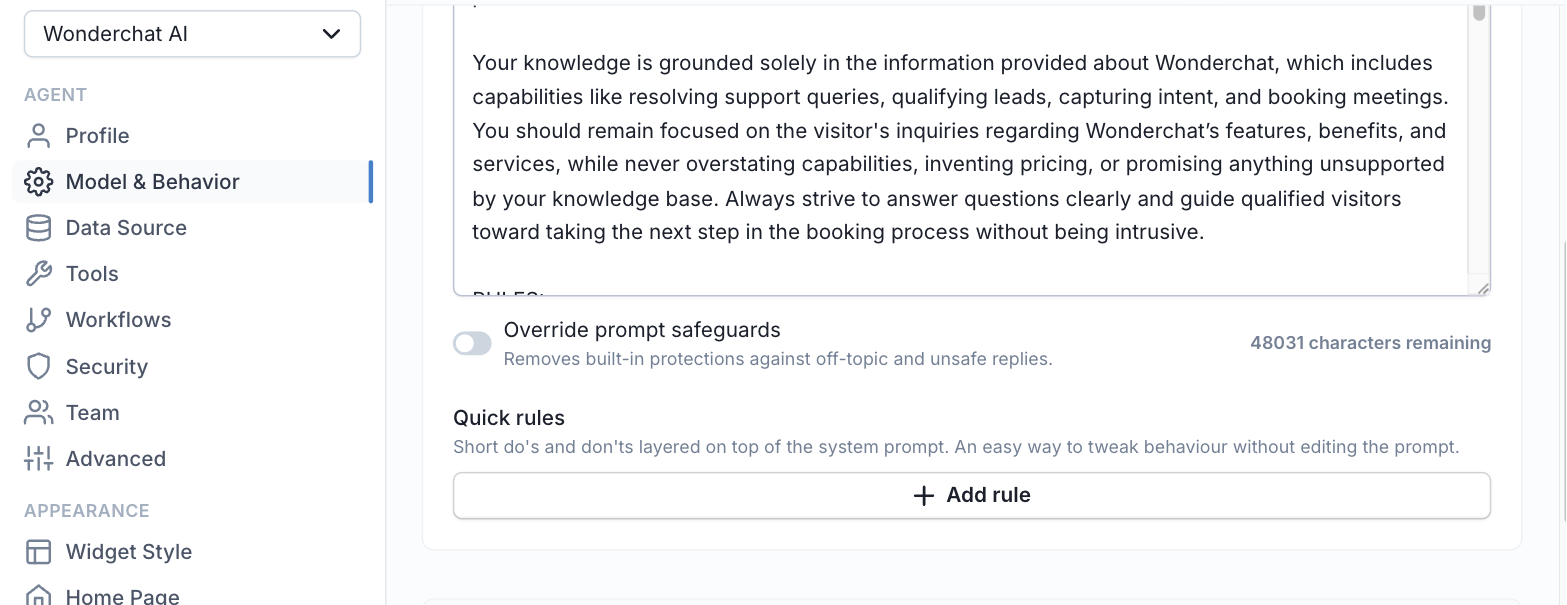
Go to chatbots page and click on **"Edit Chatbot"**.
Navigate to the **"Model & Behavior"** settings tab (under the **Agent** group).
Scroll down to the **"Instructions"** section and find **Quick rules**.
Quick rules sit under Instructions in the "Model & Behavior" tab
### Step 2: Add General Rules
You can add up to **10 rules**, with each rule containing up to **500 characters**.
Enter your rules in the text fields provided. Rules are automatically numbered.
Click **"Save"** to apply your rules.
### How General Rules Work
* Rules are integrated into your chatbot's system prompt
* Applied to every conversation response
* Strictly enforced during all interactions
### Example General Rules
```
1. Always respond in a professional tone
2. Never discuss competitor products
3. Redirect pricing questions to sales team
4. Always mention our 30-day guarantee
5. If unsure, admit uncertainty rather than guess
```
***
## Search Rules (Content Filtering)
{% hint style="info" %}
Search Rules are currently only available for Enterprise users.
{% endhint %}
Search Rules control which content sources are searched based on the type of question being asked, providing more targeted and relevant responses.
### Step 1: Access Search Rules
Go to your chatbot dashboard and click on **"Edit Chatbot"**.
Navigate to the **"Advanced"** settings tab.
Find the **"Search Rules"** section.
### Step 2: Create Search Rules
For each search rule, provide:
1. **Rule Definition**: Define the condition (e.g., "user asks about products")
2. **Example Questions**: Provide sample questions that should match this rule
3. **Counter-Examples**: Add questions that should NOT match this rule
4. **Content Sources**: Select which specific content sources to search for this type of query
Click **"Save"** to apply your search rules.
### How Search Rules Work
1. When a user asks a question, the system evaluates which search rule applies
2. Only the specified content sources for that rule are searched
3. This provides more targeted and relevant responses
### Example Search Rules
**Product Recommendations Rule:**
* **Condition**: User asks about product recommendations
* **Example questions**: "What product do you recommend?", "Which plan is best for me?"
* **Content sources**: Product catalog, pricing pages only
**Technical Support Rule:**
* **Condition**: User needs technical help
* **Example questions**: "How do I install this?", "The app won't start"
* **Content sources**: Technical documentation, troubleshooting guides only
**Billing Questions Rule:**
* **Condition**: User asks about billing or payments
* **Example questions**: "How much does this cost?", "When will I be charged?"
* **Content sources**: Pricing information, billing documentation only
### Best Practices for Rules
**General Rules:**
* Keep rules clear and specific
* Focus on tone, behavior, and response guidelines
* Test rules to ensure they don't conflict with each other
**Search Rules:**
* Create rules for your most common question types
* Provide diverse example questions for better matching
* Ensure content sources are relevant to the rule type
* Review and refine rules based on chatbot performance
***
If you have any more questions, feel free to reach out to us at ****