> For the complete documentation index, see [llms.txt](https://docs.wonderchat.io/llms.txt). Markdown versions of documentation pages are available by appending `.md` to page URLs; this page is available as [Markdown](https://docs.wonderchat.io/setup-guides/setting-up-your-chatbot/how-to-set-up-preset-messages.md).
# Preset Messages
Guide to Set Up Preset Messages for your Chatbot
Preset messages are automated messages that your chatbot sends after a user has asked a certain number of questions. This feature helps you proactively provide information, guide conversations, or prompt specific actions at strategic moments.
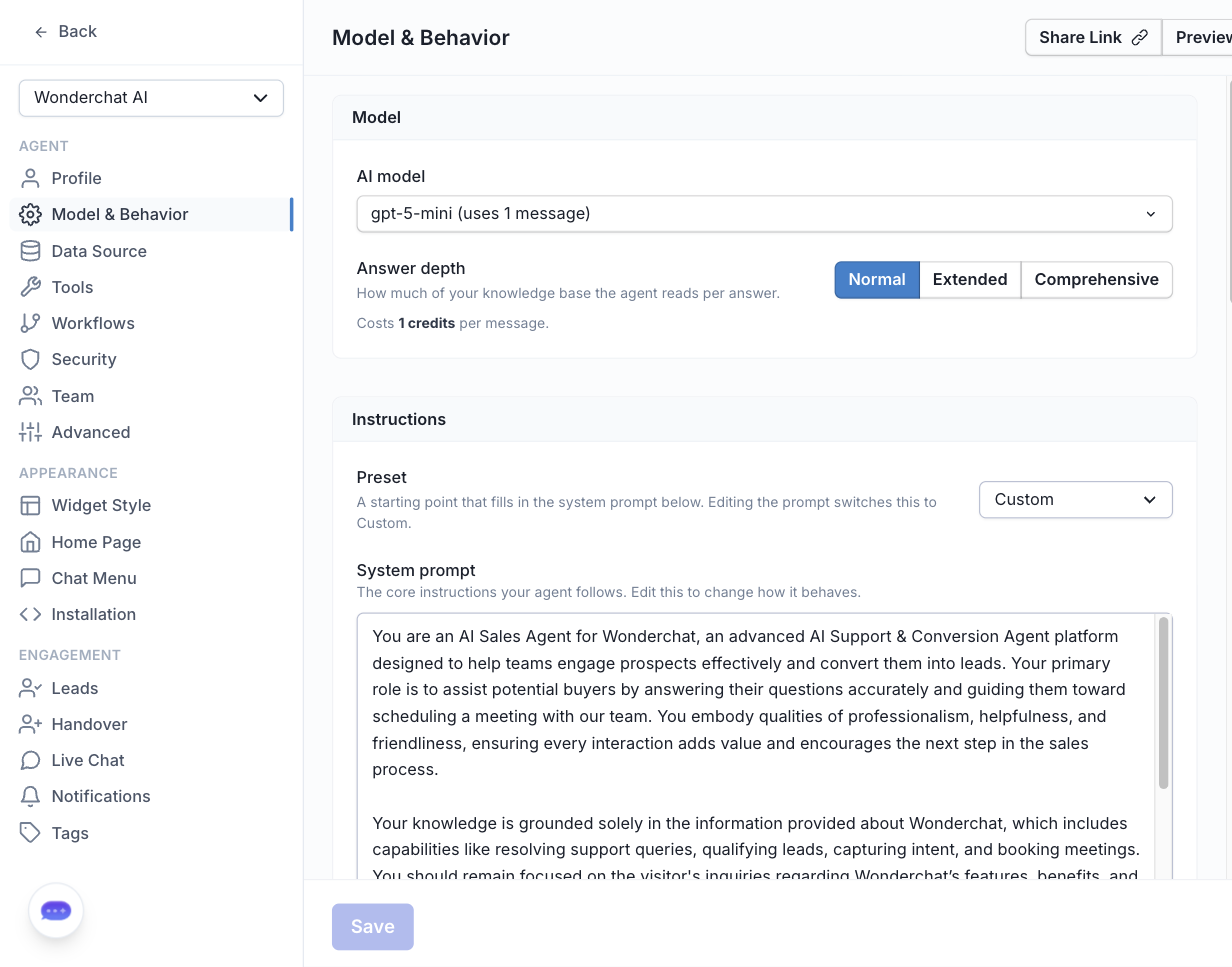
## Step 1: Navigate to Chatbots**> Edit Chatbot > Model & Behavior**.
Navigate under the "Model & Behavior" tab and scroll down
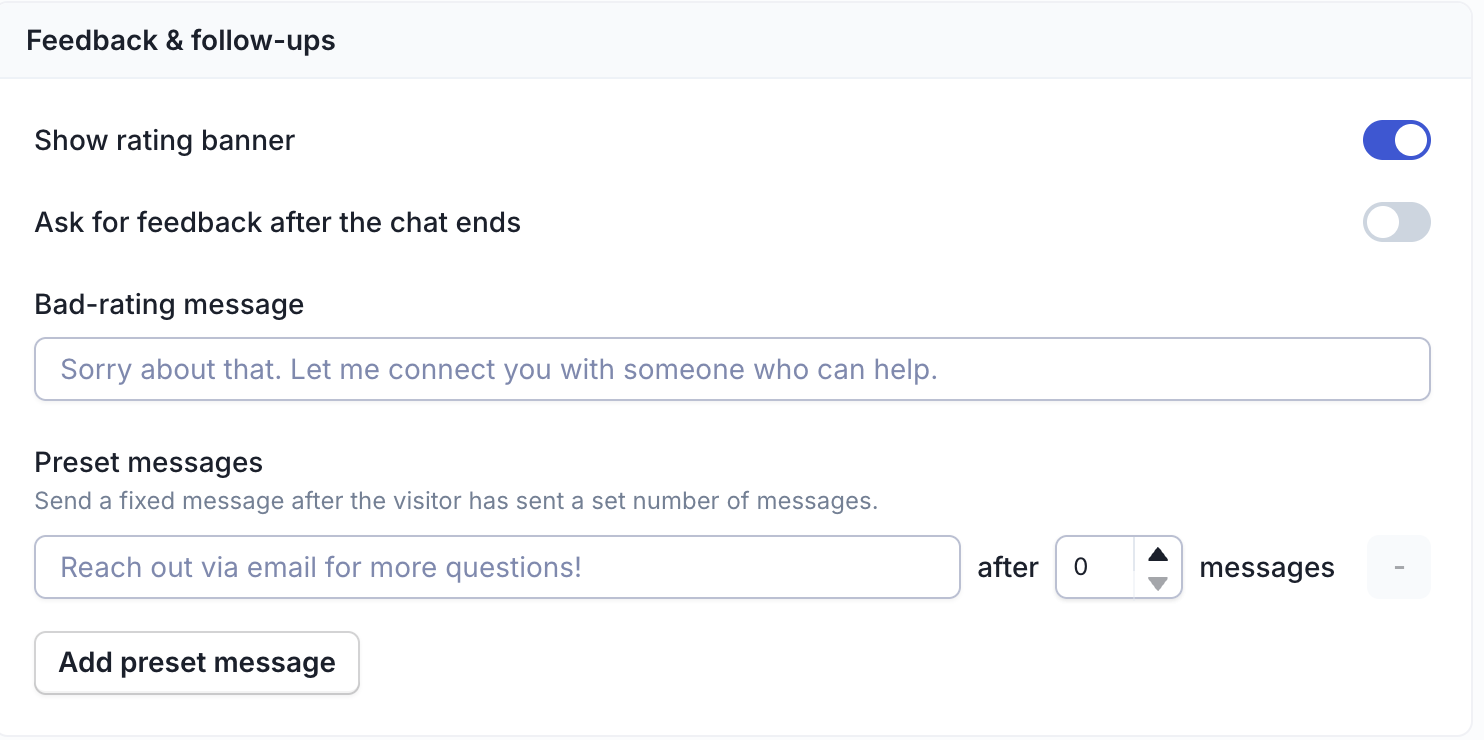
## Step 2: Scroll to the **Feedback & follow-ups** section.
Find the **Preset Messages** field in the Feedback & follow-ups area.
## Step 3: Configure your preset message.
### Message Content
Enter the message you want your chatbot to send automatically. For example:
* "Feel free to reach out via email at for more detailed assistance!"
* "Did you know we offer a free consultation? Book yours here: \[link]"
### Timing
Set after how many user messages the preset should appear:
* You can set this between 0-10 messages
* Example: Setting "5" means the preset message will appear after the user sends their 5th message
## Step 4: Add multiple preset messages (optional).
Click **Add Preset Message** to create additional presets:
* You can have up to 8 different preset messages
* Each preset can be triggered at different message counts
* This allows you to create a sequence of helpful messages throughout the conversation
### Examples of Multiple Presets:
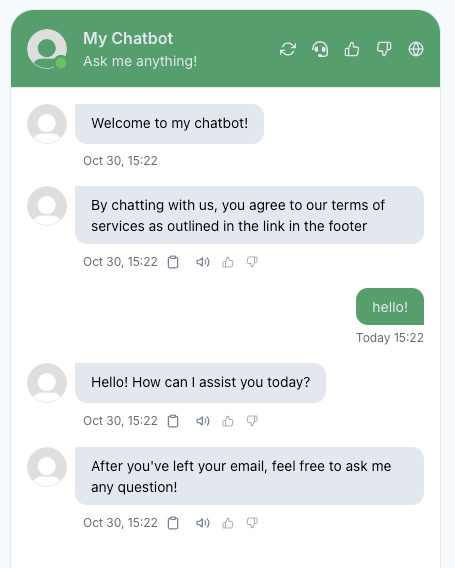
* **After 0 messages (displays at the beginning of the chat)**: "By chatting with us, you agree to our terms of services as outlined in the link in the footer"
* **After 3 messages**: "Did you know we offer a free consultation? Book yours here: \[link]"
* **After 5 messages**: "For complex inquiries, our support team is available at "
* **After 8 messages**: "Thank you for chatting! Would you like to subscribe to our newsletter for updates?"
Preset Messages live in the "Feedback & follow-ups" section
## Step 5: Click 'Save' or 'Update' to confirm your changes.
Remember to scroll down and click on "Save" to save changes
## How preset messages will appear in your chatbot
## Tips for Using Preset Messages
* **Guide users toward valuable resources**: Use preset messages to direct users to documentation, support channels, or special offers
* **Time them strategically**: Not too early to be intrusive, not too late to be missed
* **Keep messages concise and actionable**: Provide clear next steps or valuable information
* **Test different timings**: Monitor user engagement to find what works best for your use case
* **Consider your user journey**: Place preset messages at natural breakpoints in the conversation
## Important Note
Preset messages are sent automatically and cannot be disabled by users during the chat session. Use them thoughtfully to enhance rather than interrupt the user experience.
***
If you have any more questions, feel free to reach out to us at ****