> For the complete documentation index, see [llms.txt](https://docs.wonderchat.io/llms.txt). Markdown versions of documentation pages are available by appending `.md` to page URLs; this page is available as [Markdown](https://docs.wonderchat.io/setup-guides/sharing-your-chatbot/delete-team-member-from-chatbot.md).
# Delete Team Member from Chatbot
Collaborate with your team by inviting members to help manage and improve your chatbot. You can control who has access and what they’re allowed to do.
#### Delete Team Member
To delete someone from your chatbot:
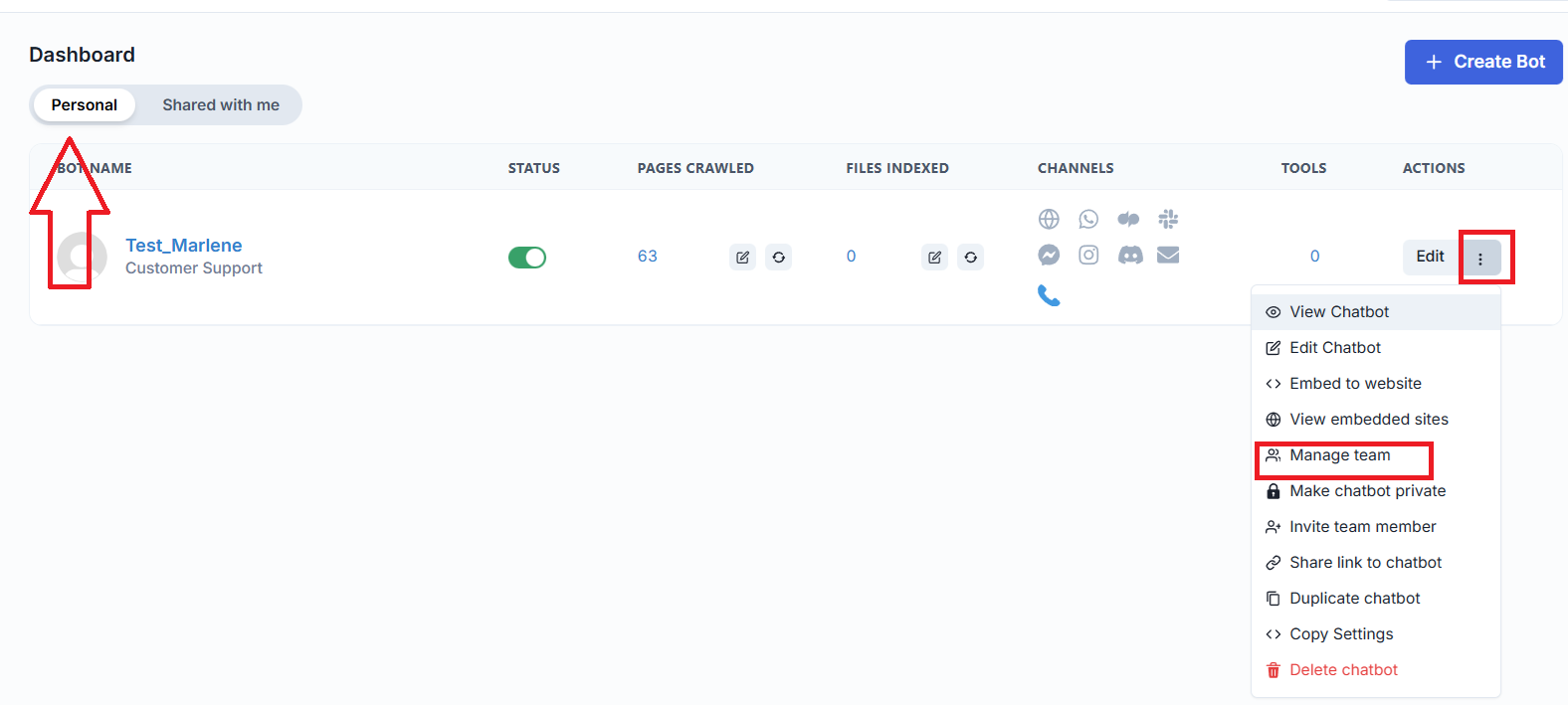
1. Go to your **Dashboard**
2. Open the chatbot you want to share
3. Click **Actions (⋮)** in the top-right corner
4. Select **Manage Team**
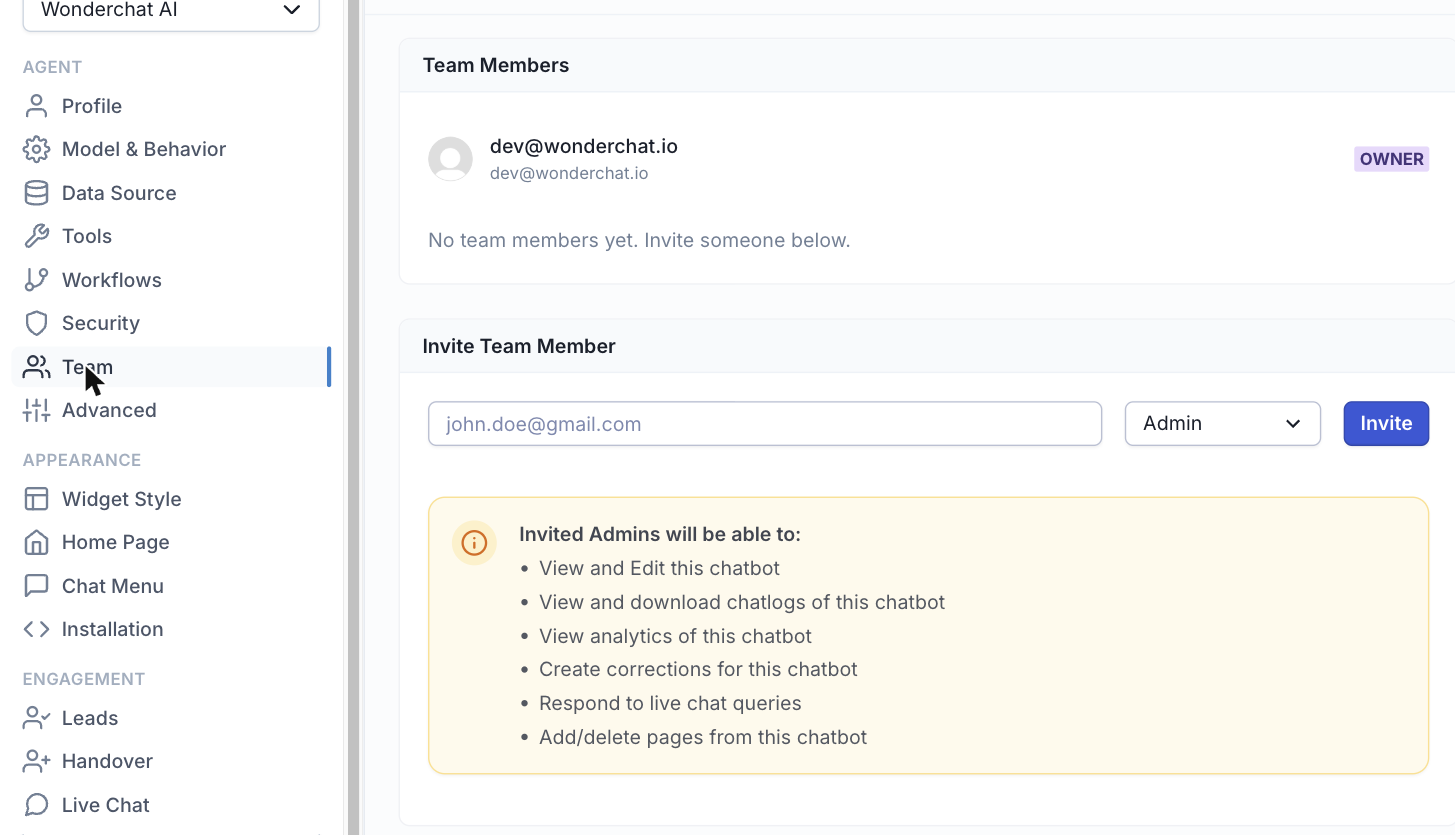
5. A new tab will open and from that tab you can delete your team members.
## TIP
Is also possible to delete directly from the dashboard page by clicking on the icon close to your bot name.
### Change roles for your team
To change the role for your team member, you just need to click on the dropdown option and select the correct role:
### Team Member Roles & Permissions
#### Admin
Admins have full control over the chatbot.
Admins can:
* View and edit the chatbot
* Add and delete pages
* View and download chat logs
* View analytics
* Create and manage corrections
* Respond to live chat conversations
* Manage team access
***
#### Member
Members can use and monitor the chatbot but cannot change its structure.
Members can:
* View the chatbot
* View and download chat logs
* View analytics
* Create corrections
* Respond to live chat conversations